


* 겪고 있는 문제 상황을 최대한 자세하게 작성해주세요.
* 문제 해결을 위해 어떤 시도를 해보았는지 구체적으로 함께 알려주세요.
안녕하세요~ 실수로 문의종료를 눌러서 다시올려요 ㅜㅡㅜ
강사님께서 하신거랑 똑같이 입력한거같은데 ㅠㅠ 왜 사진이 안나올까요 .. ?
보고 계신 화면 전체
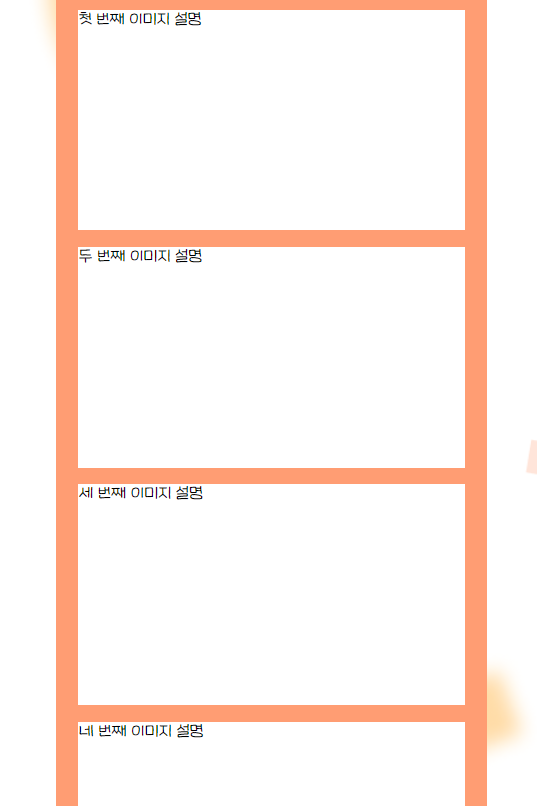
를 캡처해 주시면, 튜터님들이 빠르게 상황을 이해할 수 있어요.
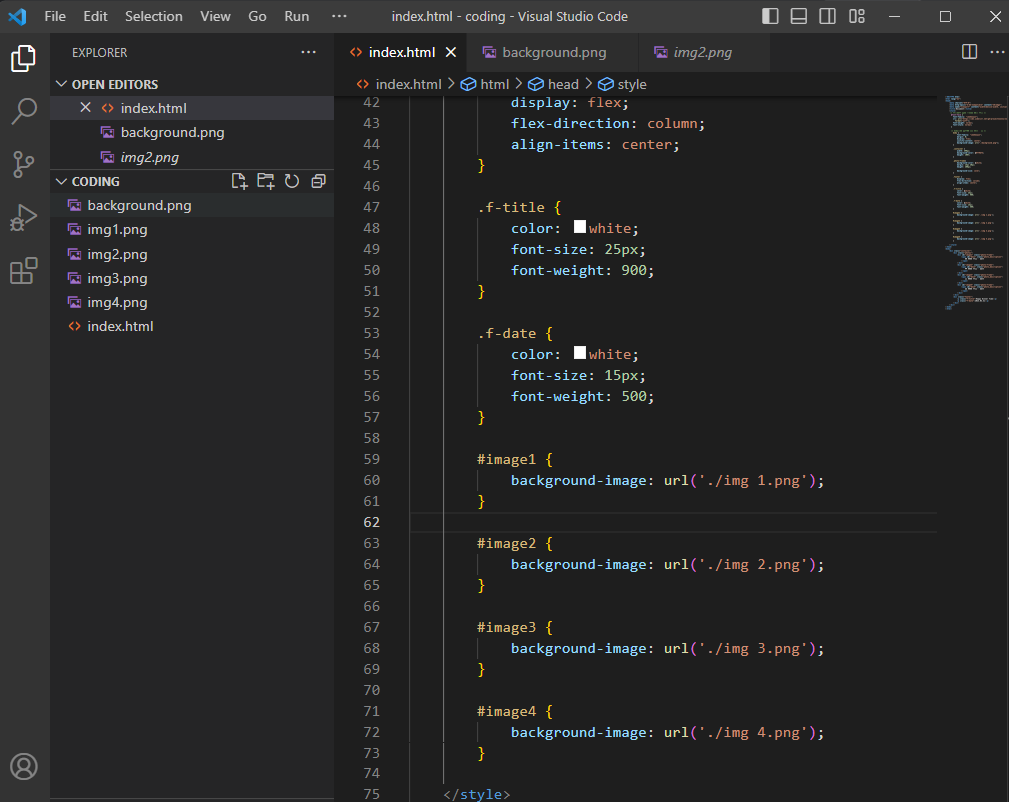
<!DOCTYPE html>
<html lang="en">
<head>
<meta charset="UTF-8">
<meta http-equiv="X-UA-Compatible" content="IE=edge">
<meta name="viewport" content="width=device-width, initial-scale=1.0">
<title>Document</title>
<style>
/* 이서윤체 폰트 적용을 위한 코드 */
@font-face {
font-family: "LeeSeoyun";
src: url("https://cdn.jsdelivr.net/gh/projectnoonnu/noonfonts_2202-2@1.0/LeeSeoyun.woff")
format("woff");
font-weight: normal;
font-style: normal;
}
/* body태그 자체에 css 요소 부여 */
body {
font-family: "LeeSeoyun";
margin: 0;
display: flex;
justify-content: center;
background-image: url("./background.png");
}
.container {
width: 390px;
background-color: #ff9d73;
height: 100%;
}
.photo-frame{
background-color: white;
margin: 15px 20px;
height: 200px;
background-size: cover;
}
.footer {
display: flex;
flex-direction: column;
align-items: center;
}
.f-title {
color: white;
font-size: 25px;
font-weight: 900;
}
.f-date {
color: white;
font-size: 15px;
font-weight: 500;
}
#image1 {
background-image: url('./img 1.png');
}
#image2 {
background-image: url('./img 2.png');
}
#image3 {
background-image: url('./img 3.png');
}
#image4 {
background-image: url('./img 4.png');
}
</style>
</head>
<body>
<div class="container">
<div class="photos">
<div id="image1" class="photo-frame">
<span id="des1" class="photo_description">
첫 번째 이미지 설명
</span>
</div>
<div id="image2" class="photo-frame">
<span id="des2" class="photo_description">
두 번째 이미지 설명
</span>
</div>
<div id="image3" class="photo-frame">
<span id="des3" class="photo_description">
세 번째 이미지 설명
</span>
</div>
<div id="image4" class="photo-frame">
<span id="des4" class="photo_description">
네 번째 이미지 설명
</span>
</div>
</div>
<div class="footer">
<p class="f-title">Happy Dinner Time</p>
<p class="f-date">2023.03.31</p>
</div>
</div>
</body>
</html>
보고 계신 화면 전체를 캡처해 주시면, 튜터님들이 빠르게 상황을 이해할 수 있어요.
작성한 코드 및 에러 메세지
오류 발생 시, 작성한 코드 전체와 에러 메시지를 첨부해 주세요.
Tip 1) </> 아이콘을 눌러 코드박스를 만들어 보세요.
Tip 2) Ctrl+A(맥의 경우 Command+A) 단축키로 코드를 한 번에 선택할 수 있어요!


