


* 겪고 있는 문제 상황을 최대한 자세하게 작성해주세요.
* 문제 해결을 위해 어떤 시도를 해보았는지 구체적으로 함께 알려주세요.
과제부분을 따라하고 Pages와 AboutPage.js, MainPage.js, app.json 모두 정리하였고 App.js도 수정하였는데 화면오류가 납니다. 왜그럴까요?
'../data.json' 도 MainPage.js에 정리하였습니다.
그리고 이미지를 지정할 때 URL 이미지의 경우 const aboutImage = "https://storage.googleapis.com/sparta-image.appspot.com/lecture/about.png"를 사용하는데 이미지가 로컬폴더 ./assets에 있는 경우에는 지정을 어떻게 하는지요? 강의에서 배웠는데 <Image style={Styles.mainImage} source={main}/>을 지정해서 하는 것만 알고 있어서 이 부분을 AboutPage.js에서 적용하려면 어떻게 가져오면 좋을지 알려주시면 감사하겠습니다. 참고로 about.png는 assets 폴더에 저장해 둔 것도 있어서 URL 활용과 로컬 이미지를 어떻게 연계하는지 양쪽 다 잘 알고 싶습니다.
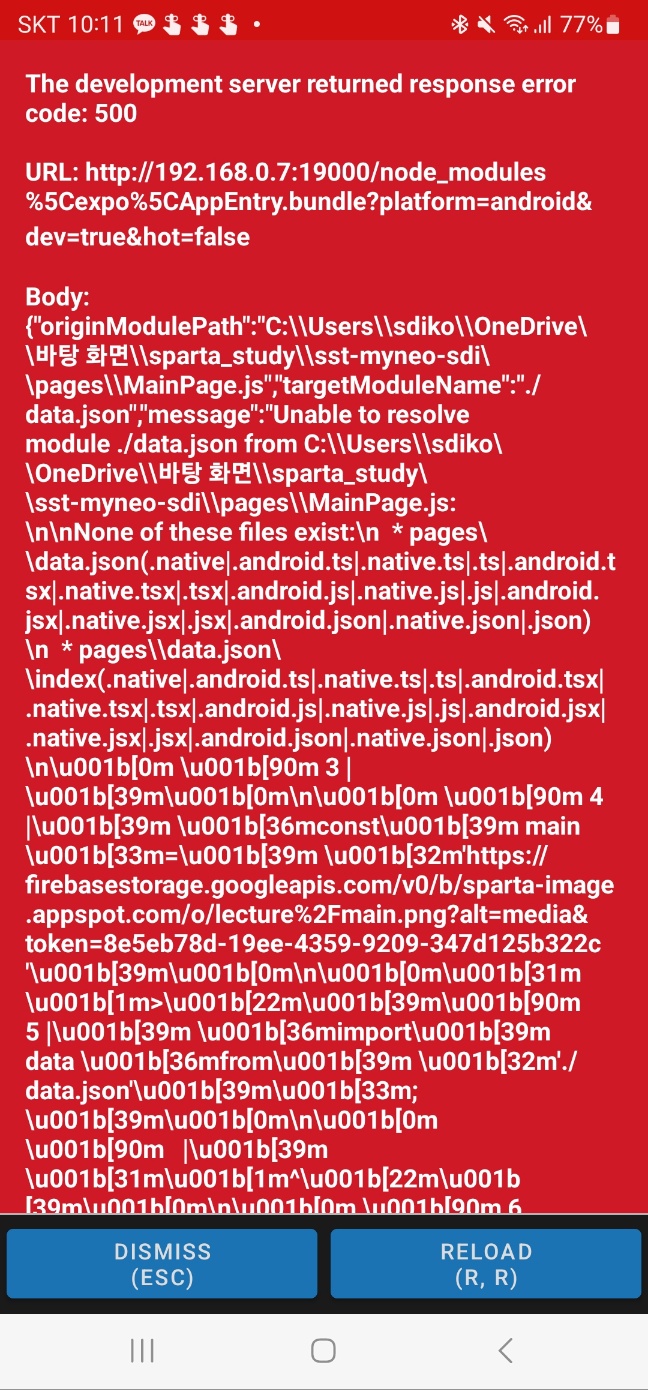
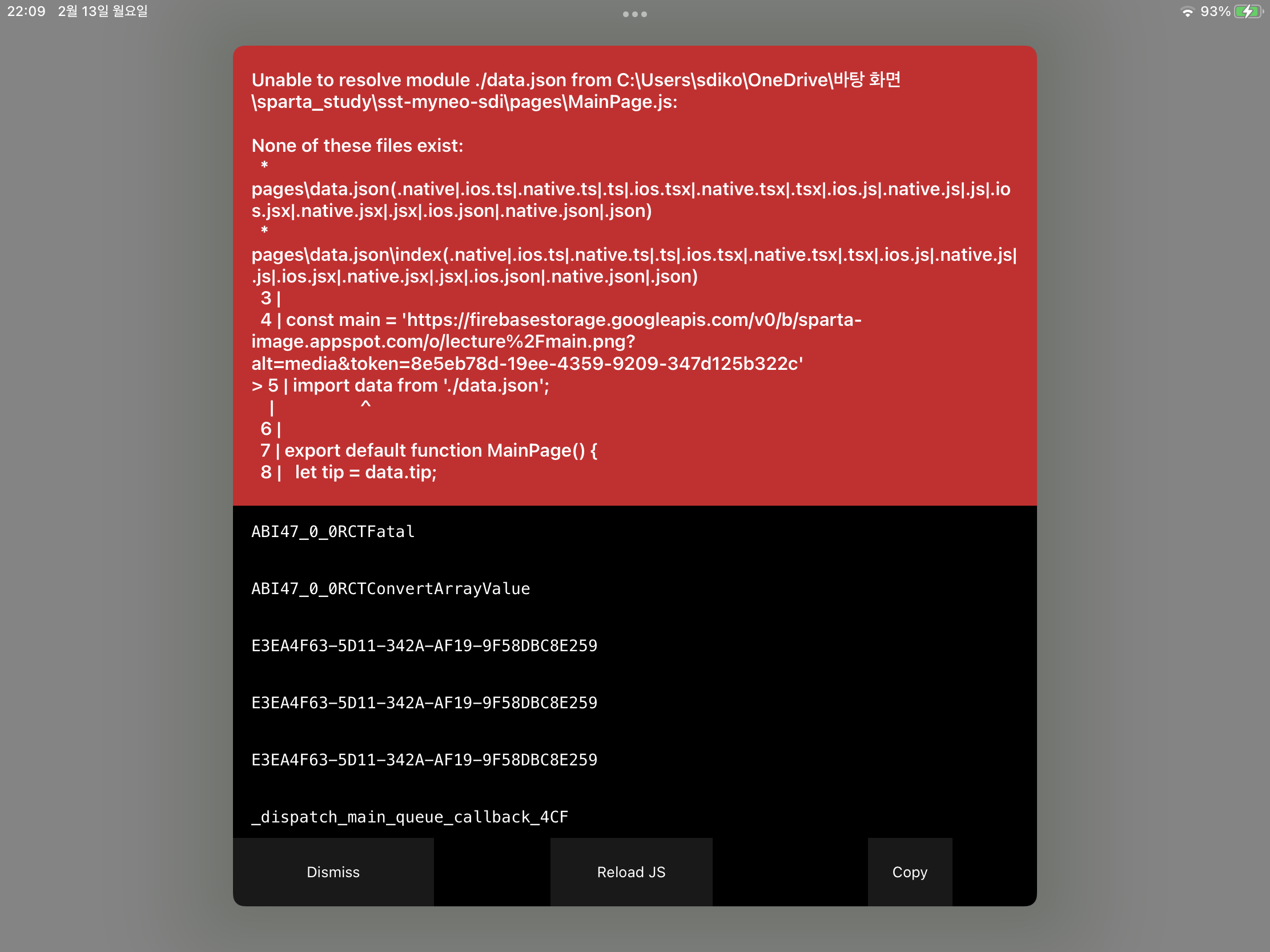
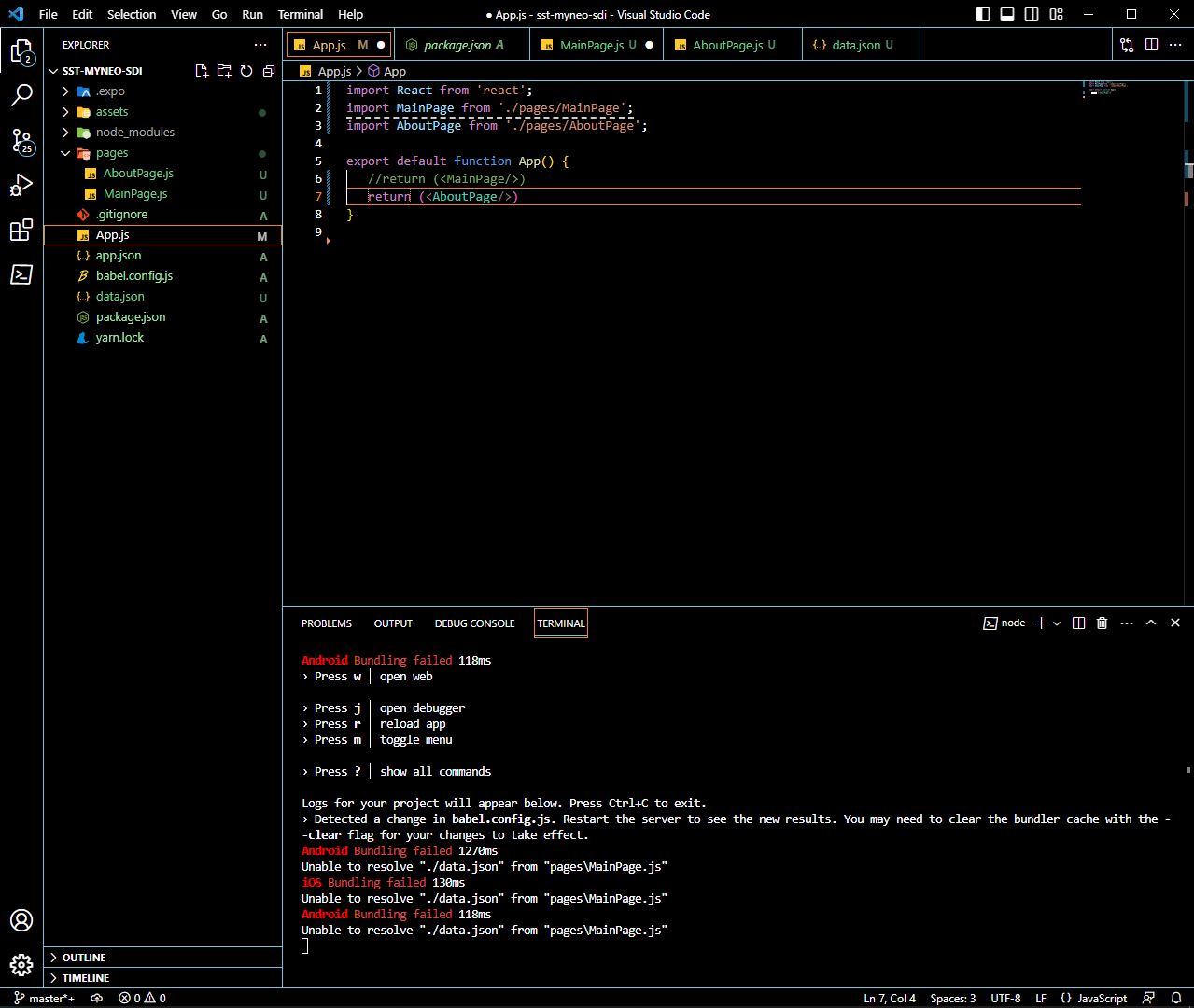
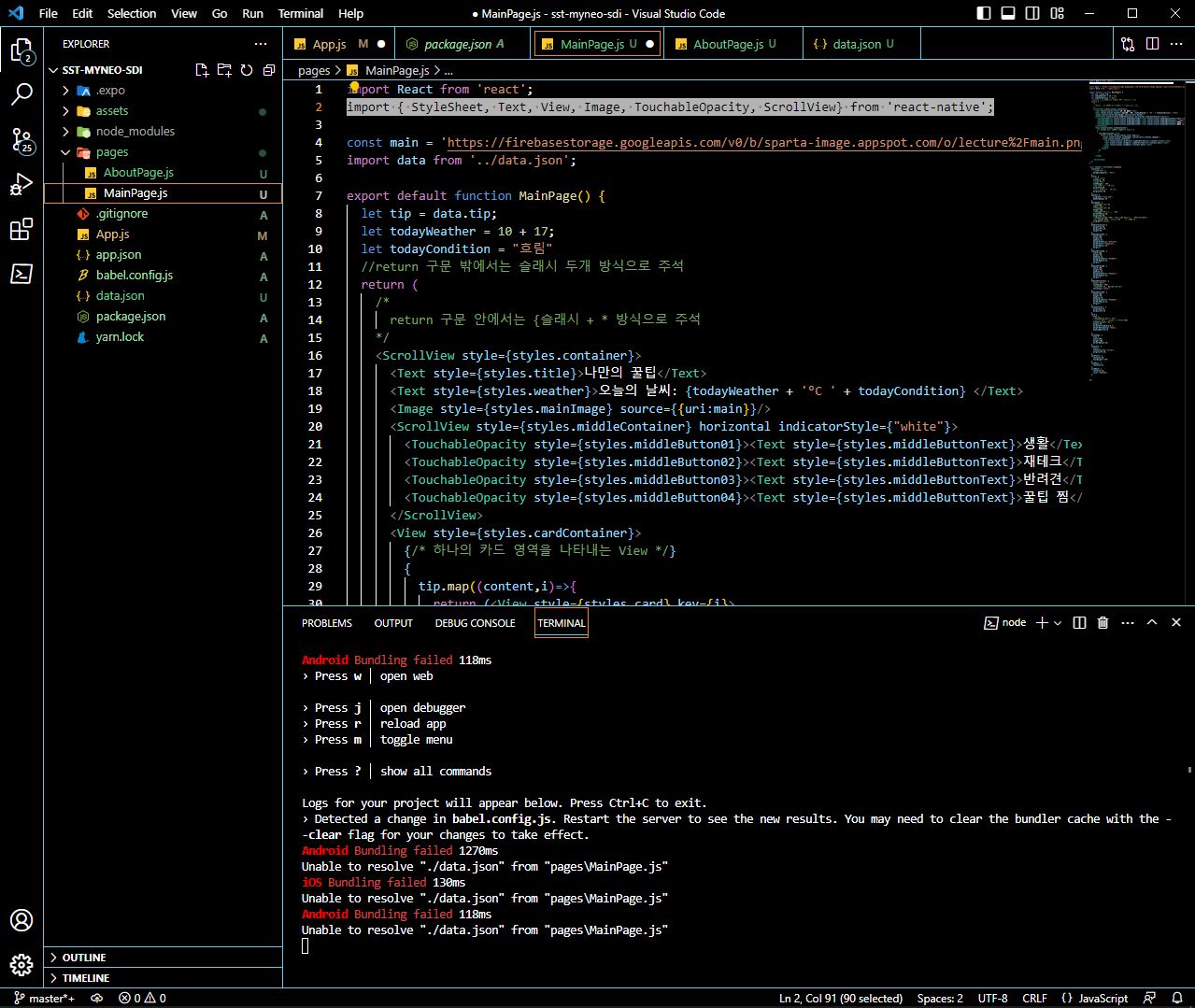
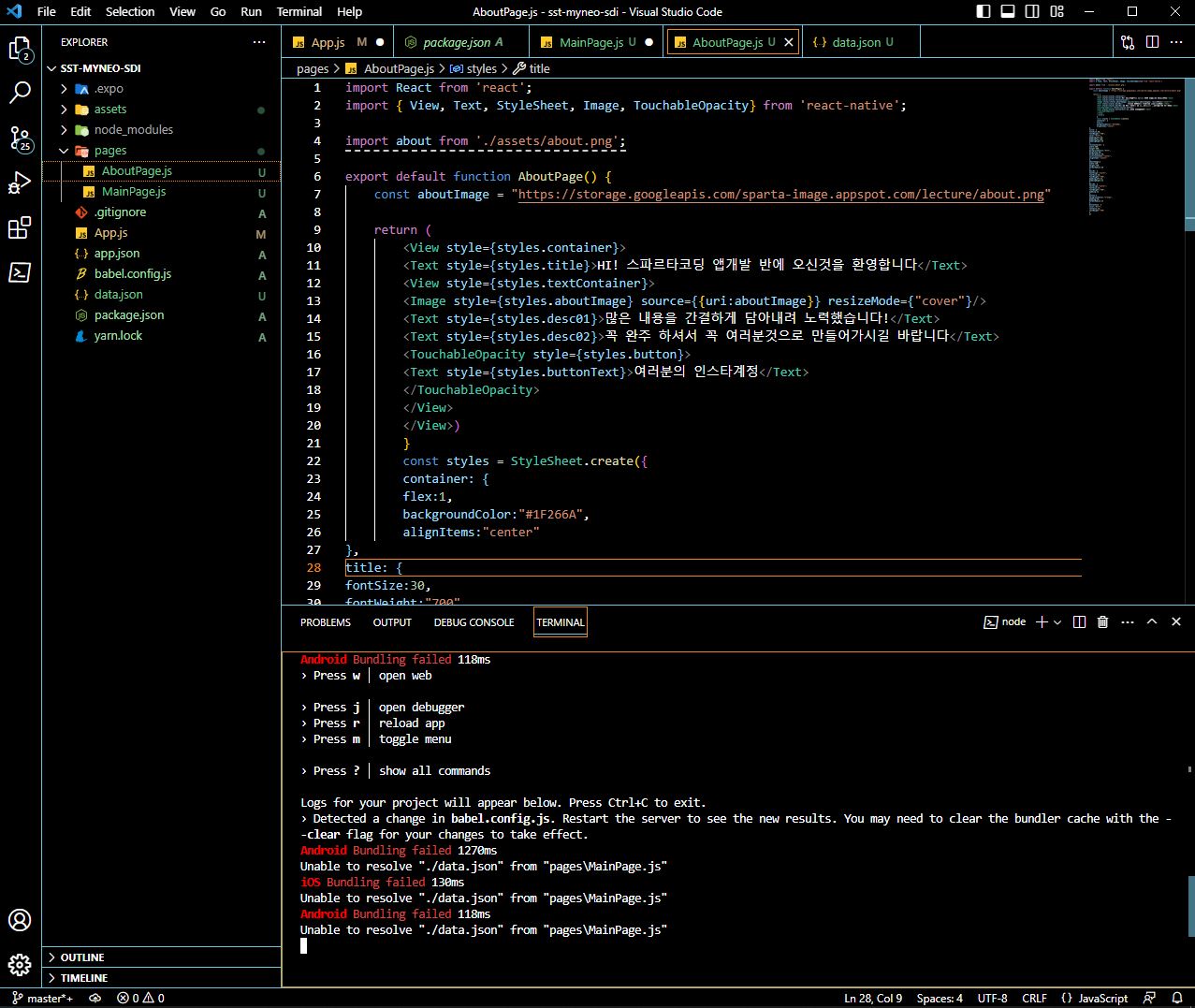
작성한 코드 및 에러 메세지
import React from 'react';
import { View, Text, StyleSheet, Image, TouchableOpacity} from 'react-native';
import about from './assets/about.png';
export default function AboutPage() {
const aboutImage = "https://storage.googleapis.com/sparta-image.appspot.com/lecture/about.png"
return (
<View style={styles.container}>
<Text style={styles.title}>HI! 스파르타코딩 앱개발 반에 오신것을 환영합니다</Text>
<View style={styles.textContainer}>
<Image style={styles.aboutImage} source={{uri:aboutImage}} resizeMode={"cover"}/>
<Text style={styles.desc01}>많은 내용을 간결하게 담아내려 노력했습니다!</Text>
<Text style={styles.desc02}>꼭 완주 하셔서 꼭 여러분것으로 만들어가시길 바랍니다</Text>
<TouchableOpacity style={styles.button}>
<Text style={styles.buttonText}>여러분의 인스타계정</Text>
</TouchableOpacity>
</View>
</View>)
}
const styles = StyleSheet.create({
container: {
flex:1,
backgroundColor:"#1F266A",
alignItems:"center"
},
title: {
fontSize:30,
fontWeight:"700",
color:"#fff",
paddingLeft:30,
paddingTop:100,
paddingRight:30
},
textContainer: {
width:300,
height:500,
backgroundColor:"#fff",
marginTop:50,
borderRadius:30,
justifyContent:"center",
alignItems:"center"
},
aboutImage:{
width:150,
height:150,
borderRadius:30
},
desc01: {
textAlign:"center",
fontSize:20,
fontWeight:"700",
paddingLeft:22,
paddingRight:22
},
desc02: {
textAlign:"center",
fontSize:15,
fontWeight:"700",
padding:22
},
button:{
backgroundColor:"orange",
padding:20,
borderRadius:15
},
buttonText: {
color:"#fff",
fontSize:15,
fontWeight:"700"
}
})오류 발생 시, 작성한 코드 전체와 에러 메시지를 첨부해 주세요.
Tip 1) </> 아이콘을 눌러 코드박스를 만들어 보세요.
Tip 2) Ctrl+A(맥의 경우 Command+A) 단축키로 코드를 한 번에 선택할 수 있어요!


