커뮤니티

포인트
쿠폰
내 강의실
국비 신청 내역
증명서
계정
로그아웃
학습 질문
개발 일지
나의 활동
답변 완료
스플래시 스크린 변경 후 expo 앱 연결이 안되네요.
[왕초보] 나만의 수익성 앱, 앱개발 종합반 v5
5주차


박*하
댓글
11
・
추천
0
・
조회수
39
조회수
39
답변 완료
* 겪고 있는 문제 상황을 최대한 자세하게 작성해주세요.
* 문제 해결을 위해 어떤 시도를 해보았는지 구체적으로 함께 알려주세요.
5-4 강의시 스플래시 스크린 이미지 변경 후부터 이미지는 변경되었으나 앱 연결이 안되었어요.
우선 아이콘 변경까지 수업을 진행하였고, 마찬가지로 변경했으나 여전히 앱 연결이 안되네요..
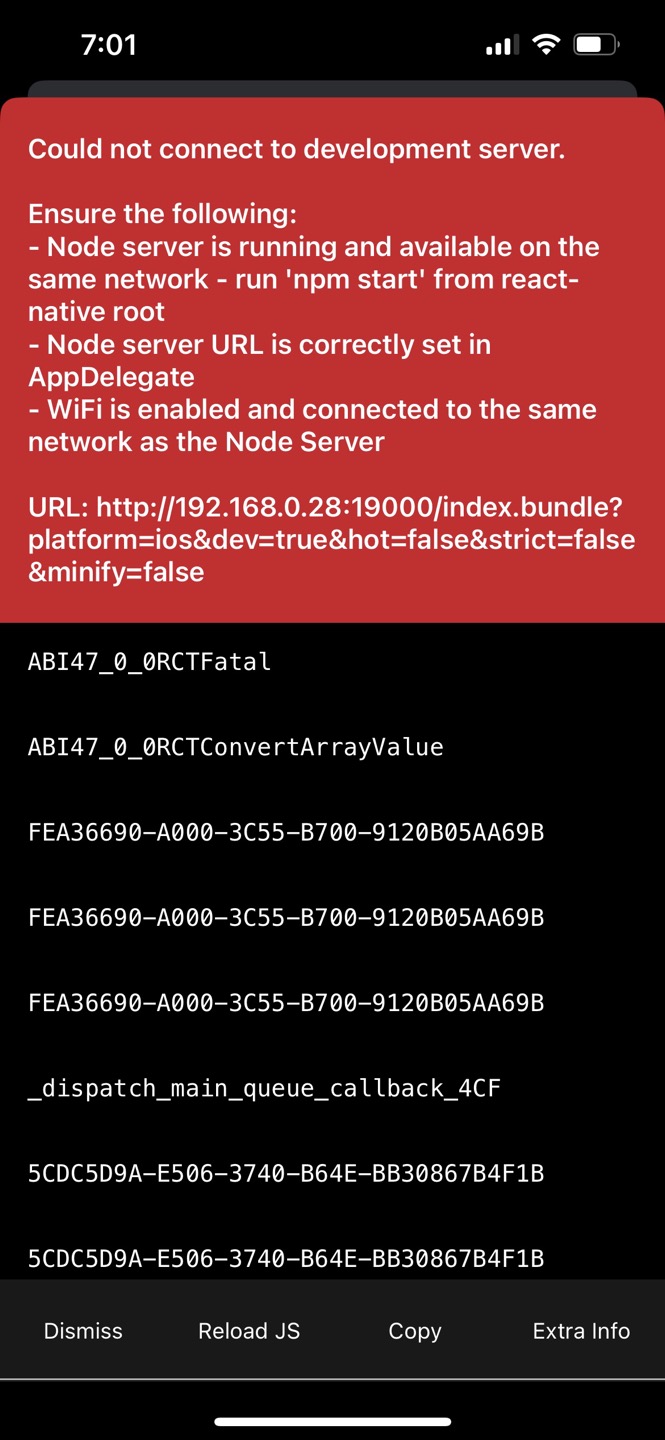
아이폰의 expo 앱 오류 화면입니다.
작성한 코드 및 에러 메세지
- 터미널에 나오는 에러 메세지
Invariant Violation: Your JavaScript code tried to access a native module that doesn't exist.


If you're trying to use a module that is not supported in Expo Go, you need to create a development build of your app. See https://docs.expo.dev/development/introduction/ for more info.
at node_modules\react-native\Libraries\Core\ExceptionsManager.js:null in reportException
at node_modules\react-native\Libraries\Core\ExceptionsManager.js:null in handleException
at node_modules\react-native\Libraries\Core\setUpErrorHandling.js:null in handleError
at node_modules\expo\build\errors\ExpoErrorManager.js:null in errorHandler
at node_modules\expo\build\errors\ExpoErrorManager.js:null in <anonymous>
at node_modules\@react-native\polyfills\error-guard.js:null in ErrorUtils.reportFatalError
at node_modules\metro-runtime\src\polyfills\require.js:null in guardedLoadModule
at http://192.168.0.28:19000/index.bundle?platform=ios&dev=true&hot=false&strict=false&minify=false:null in global code


Invariant Violation: Failed to call into JavaScript module method AppRegistry.runApplication(). Module has not been registered as callable. Registered callable JavaScript modules (n = 11): Systrace, JSTimers, HeapCapture, SamplingProfiler, RCTLog, RCTDeviceEventEmitter, RCTNativeAppEventEmitter, GlobalPerformanceLogger, JSDevSupportModule, HMRClient, RCTEventEmitter.
        A frequent cause of the error is that the application entry file path is incorrect. This can also happen when the JS bundle is corrupt or there is an early initialization error when loading React Native.
at node_modules\react-native\Libraries\Core\ExceptionsManager.js:null in reportException
at node_modules\react-native\Libraries\Core\ExceptionsManager.js:null in handleException
at node_modules\react-native\Libraries\Core\setUpErrorHandling.js:null in handleError
at node_modules\expo\build\errors\ExpoErrorManager.js:null in errorHandler
at node_modules\expo\build\errors\ExpoErrorManager.js:null in <anonymous>
at node_modules\@react-native\polyfills\error-guard.js:null in ErrorUtils.reportFatalError
at node_modules\react-native\Libraries\BatchedBridge\MessageQueue.js:null in __guard
at node_modules\react-native\Libraries\BatchedBridge\MessageQueue.js:null in callFunctionReturnFlushedQueue


Invariant Violation: Failed to call into JavaScript module method AppRegistry.runApplication(). Module has not been registered as callable. Registered callable JavaScript modules (n = 11): Systrace, JSTimers, HeapCapture, SamplingProfiler, RCTLog, RCTDeviceEventEmitter, RCTNativeAppEventEmitter, GlobalPerformanceLogger, JSDevSupportModule, HMRClient, RCTEventEmitter.
        A frequent cause of the error is that the application entry file path is incorrect. This can also happen when the JS bundle is corrupt or there is an early initialization error when loading React Native.
at node_modules\react-native\Libraries\Core\ExceptionsManager.js:null in reportException
at node_modules\react-native\Libraries\Core\ExceptionsManager.js:null in handleException
at node_modules\react-native\Libraries\Core\setUpErrorHandling.js:null in handleError
at node_modules\expo\build\errors\ExpoErrorManager.js:null in errorHandler
at node_modules\expo\build\errors\ExpoErrorManager.js:null in <anonymous>
at node_modules\@react-native\polyfills\error-guard.js:null in ErrorUtils.reportFatalError
at node_modules\react-native\Libraries\BatchedBridge\MessageQueue.js:null in __guard
at node_modules\react-native\Libraries\BatchedBridge\MessageQueue.js:null in callFunctionReturnFlushedQueue
- app.json
{
  "expo": {
    "name": "spart-myhoneytip-luckylea",
    "slug": "spart-myhoneytip-luckylea",
    "version": "1.0.0",
    "orientation": "portrait",
    "icon": "./assets/icon.png",
    "userInterfaceStyle": "light",
    "splash": {
      "image": "./assets/splash.png",
      "resizeMode": "contain",
      "backgroundColor": "#ffffff"
    },
    "updates": {
      "fallbackToCacheTimeout": 0
    },
    "assetBundlePatterns": [
      "**/*"
    ],
    "ios": {
      "supportsTablet": true
    },
    "android": {
      "adaptiveIcon": {
        "foregroundImage": "./assets/adaptive-icon.png",
        "backgroundColor": "#FFFFFF"
      },
      "package": "com.luckylea.spartmyhoneytipluckylea"
    },
    "web": {
      "favicon": "./assets/favicon.png"
    },
    "plugins": [
      [
        "expo-build-properties",
        {
          "ios": {
            "useFrameworks": "static"
          }
        }
      ]
    ],
    "extra": {
      "eas": {
        "projectId": "9626373e-3a44-4161-bdee-5eb8c0a2a0e3"
      }
    }
  },
  "react-native-google-mobile-ads": {
    "android_app_id": "ca-app-pub-6970875250546393~9336681388",
    "ios_app_id": "ca-app-pub-6970875250546393~6663180921"
  }
}
- MainPages.js
import React,{useState,useEffect} from 'react';
import { StyleSheet, Text, View, Image, TouchableOpacity, ScrollView} from 'react-native';


const main = 'https://storage.googleapis.com/sparta-image.appspot.com/lecture/main.png'
import data from '../data.json';
import AdCard from '../components/AdCard';
import Loading from '../components/Loading';
import { StatusBar } from 'expo-status-bar';
import * as Location from "expo-location";
import axios from "axios"
import {firebase_db} from "../firebaseConfig"
import { BannerAd, BannerAdSize, TestIds } from 'react-native-google-mobile-ads';


const adUnitId = __DEV__ ? TestIds.BANNER : 'ca-app-pub-6970875250546393/7317587358';


export default function MainPage({navigation,route}) {
  //useState 사용법
  //[state,setState] 에서 state는 이 컴포넌트에서 관리될 상태 데이터를 담고 있는 변수
  //setState는 state를 변경시킬때 사용해야하는 함수


  //모두 다 useState가 선물해줌
  //useState()안에 전달되는 값은 state 초기값
  const [state,setState] = useState([])
  const [cateState,setCateState] = useState([])
  //날씨 데이터 상태관리 상태 생성!
  const [weather, setWeather] = useState({
    temp : 0,
    condition : ''
  })


  //하단의 return 문이 실행되어 화면이 그려진다음 실행되는 useEffect 함수
  //내부에서 data.json으로 부터 가져온 데이터를 state 상태에 담고 있음
  const [ready,setReady] = useState(true)


  useEffect(()=>{
    navigation.setOptions({
      title:'나만의 꿀팁'
    })
    //뒤의 1000 숫자는 1초를 뜻함
    //1초 뒤에 실행되는 코드들이 담겨 있는 함수
    setTimeout(()=>{
        firebase_db.ref('/tip').once('value').then((snapshot) => {
          console.log("파이어베이스에서 데이터 가져왔습니다!!")
          let tip = snapshot.val();

          setState(tip)
          setCateState(tip)
          getLocation()
          setReady(false)
        });
        // getLocation()
        // setState(data.tip)
        // setCateState(data.tip)
        // setReady(false)
    },1000)


  },[])


  const getLocation = async () => {
    //수많은 로직중에 에러가 발생하면
    //해당 에러를 포착하여 로직을 멈추고,에러를 해결하기 위한 catch 영역 로직이 실행
    try {
      //자바스크립트 함수의 실행순서를 고정하기 위해 쓰는 async,await
      await Location.requestForegroundPermissionsAsync();
      const locationData= await Location.getCurrentPositionAsync();
      // console.log(locationData)
      // console.log(locationData['coords']['latitude'])
      // console.log(locationData['coords']['longitude'])
      const latitude = locationData['coords']['latitude']
      const longitude = locationData['coords']['longitude']
      const API_KEY = "cfc258c75e1da2149c33daffd07a911d";
      const result = await axios.get(
        `http://api.openweathermap.org/data/2.5/weather?lat=${latitude}&lon=${longitude}&appid=${API_KEY}&units=metric`
      );


      const temp = result.data.main.temp;
      const condition = result.data.weather[0].main


      //오랜만에 복습해보는 객체 리터럴 방식으로 딕셔너리 구성하기!!
      //잘 기억이 안난다면 1주차 강의 6-5를 다시 복습해보세요!
      setWeather({
        temp,condition
      })


    } catch (error) {
      //혹시나 위치를 못가져올 경우를 대비해서, 안내를 준비합니다
      Alert.alert("위치를 찾을 수가 없습니다.", "앱을 껏다 켜볼까요?");
    }
  }


  const category = (cate) => {
    if(cate == "전체보기"){
        //전체보기면 원래 꿀팁 데이터를 담고 있는 상태값으로 다시 초기화
        setCateState(state)
    }else{
        setCateState(state.filter((d)=>{
            return d.category == cate
        }))
    }
}


  //data.json 데이터는 state에 담기므로 상태에서 꺼내옴
  // let tip = state.tip;
  let todayWeather = 10 + 17;
  let todayCondition = "흐림"
  //return 구문 밖에서는 슬래시 두개 방식으로 주석
  return ready ? <Loading/> :  (
    /*
      return 구문 안에서는 {슬래시 + * 방식으로 주석
    */


    <View>
      {__DEV__ ? null : (<BannerAd
        unitId={adUnitId}
        size={BannerAdSize.FULL_BANNER}
        requestOptions={{
          requestNonPersonalizedAdsOnly: true,
        }}
      />)}
    <ScrollView style={styles.container}>
      <StatusBar style="light" />
      {/* <Text style={styles.title}>나만의 꿀팁</Text> */}
      <Text style={styles.weather}>오늘의 날씨: {weather.temp + '°C   ' + weather.condition} </Text>
      <TouchableOpacity style={styles.aboutButton} onPress={()=>{navigation.navigate('AboutPage')}}>
          <Text style={styles.aboutButtonText}>소개 페이지</Text>
        </TouchableOpacity>
      <Image style={styles.mainImage} source={{uri:main}}/>
      <ScrollView style={styles.middleContainer} horizontal indicatorStyle={"white"}>
      <TouchableOpacity style={styles.middleButtonAll} onPress={()=>{category('전체보기')}}><Text style={styles.middleButtonTextAll}>전체보기</Text></TouchableOpacity>
        <TouchableOpacity style={styles.middleButton01} onPress={()=>{category('생활')}}><Text style={styles.middleButtonText}>생활</Text></TouchableOpacity>
        <TouchableOpacity style={styles.middleButton02} onPress={()=>{category('재테크')}}><Text style={styles.middleButtonText}>재테크</Text></TouchableOpacity>
        <TouchableOpacity style={styles.middleButton03} onPress={()=>{category('반려견')}}><Text style={styles.middleButtonText}>반려견</Text></TouchableOpacity>
        <TouchableOpacity style={styles.middleButton04} onPress={()=>{navigation.navigate('LikePage')}}><Text style={styles.middleButtonText}>꿀팁 찜</Text></TouchableOpacity>
      </ScrollView>
      <View style={styles.cardContainer}>
        {/* 하나의 카드 영역을 나타내는 View */}
        {
          cateState.map((content,i)=>{
            return __DEV__ ? (<Card content={content} key={i} navigation={navigation}/>) : (<AdCard content={content} key={i} navigation={navigation}/>)
          })
        }

      </View>

    </ScrollView>
    </View>
    )
}


const styles = StyleSheet.create({
  container: {
    //앱의 배경 색
    backgroundColor: '#fff',
  },
  title: {
    //폰트 사이즈
    fontSize: 20,
    //폰트 두께
    fontWeight: '700',
    //위 공간으로 부터 이격
    marginTop:50,
    //왼쪽 공간으로 부터 이격
    marginLeft:20
  },
weather:{
    alignSelf:"flex-end",
    paddingRight:20
  },
  mainImage: {
    //컨텐츠의 넓이 값
    width:'90%',
    //컨텐츠의 높이 값
    height:200,
    //컨텐츠의 모서리 구부리기
    borderRadius:10,
    marginTop:20,
    //컨텐츠 자체가 앱에서 어떤 곳에 위치시킬지 결정(정렬기능)
    //각 속성의 값들은 공식문서에 고대로~ 나와 있음
    alignSelf:"center"
  },
  middleContainer:{
    marginTop:20,
    marginLeft:10,
    height:60
  },
  middleButtonAll: {
    width:100,
    height:50,
    padding:15,
    backgroundColor:"#20b2aa",
    borderColor:"deeppink",
    borderRadius:15,
    margin:7
  },
  middleButton01: {
    width:100,
    height:50,
    padding:15,
    backgroundColor:"#fdc453",
    borderColor:"deeppink",
    borderRadius:15,
    margin:7
  },
  middleButton02: {
    width:100,
    height:50,
    padding:15,
    backgroundColor:"#fe8d6f",
    borderRadius:15,
    margin:7
  },
  middleButton03: {
    width:100,
    height:50,
    padding:15,
    backgroundColor:"#9adbc5",
    borderRadius:15,
    margin:7
  },
  middleButton04: {
    width:100,
    height:50,
    padding:15,
    backgroundColor:"#f886a8",
    borderRadius:15,
    margin:7
  },
  middleButtonText: {
    color:"#fff",
    fontWeight:"700",
    //텍스트의 현재 위치에서의 정렬
    textAlign:"center"
  },
  middleButtonTextAll: {
    color:"#fff",
    fontWeight:"700",
    //텍스트의 현재 위치에서의 정렬
    textAlign:"center"
  },
  cardContainer: {
    marginTop:10,
    marginLeft:10
  },
  aboutButton: {
    backgroundColor:"pink",
    width:100,
    height:40,
    borderRadius:10,
    alignSelf:"flex-end",
    marginRight:20,
    marginTop:10
  },
  aboutButtonText: {
    color:"#fff",
    textAlign:"center",
    marginTop:10
  }


});


댓글 알림
