커뮤니티

포인트
쿠폰
내 강의실
국비 신청 내역
증명서
계정
로그아웃
학습 질문
개발 일지
나의 활동
답변 완료
4주차 6차시에서 에러가 나와 질문이 있습니다.
[왕초보] 나만의 수익성 앱, 앱개발 종합반
4주차


이*민
댓글
6
・
추천
0
・
조회수
11
조회수
11
답변 완료
firebaseConfig.js
import firebase from "firebase/compat/app";


// 사용할 파이어베이스 서비스 주석을 해제합니다
//import "firebase/compat/auth";
import "firebase/compat/database";
//import "firebase/compat/firestore";
//import "firebase/compat/functions";
import "firebase/compat/storage";


// Initialize Firebase
//파이어베이스 사이트에서 봤던 연결정보를 여기에 가져옵니다
const firebaseConfig = {
    apiKey: "AIzaSyD2uvkKSmiccdM9OOqEQlKa9rPlHH7bSsc",
    authDomain: "sparta-myhoneytip-min-da530.firebaseapp.com",
    projectId: "sparta-myhoneytip-min-da530",
    databaseURL: "https://sparta-myhoneytip-min-da530-default-rtdb.asia-southeast1.firebasedatabase.app/"
    storageBucket: "sparta-myhoneytip-min-da530.appspot.com",
    messagingSenderId: "475713021721",
    appId: "1:475713021721:web:4b45d154aaf308c42e4788",
    measurementId: "G-CR811HQKWE"
};


//사용 방법입니다.
//파이어베이스 연결에 혹시 오류가 있을 경우를 대비한 코드로 알아두면 됩니다.
if (!firebase.apps.length) {
    firebase.initializeApp(firebaseConfig);
}


export const firebase_db = firebase.database()
MainPage.js
import React, { useState, useEffect } from 'react';
import { StyleSheet, Text, View, Image, TouchableOpacity, ScrollView } from 'react-native';


const main = 'https://storage.googleapis.com/sparta-image.appspot.com/lecture/main.png'
import data from '../data.json';
import Card from '../components/Card';
import Loading from '../components/Loading';
import { StatusBar } from 'expo-status-bar';
import * as Location from "expo-location";
import axios from "axios"
import { firebase_db } from "../firebaseConfig"


export default function MainPage({ navigation, route }) {
    //useState 사용법
    //[state,setState] 에서 state는 이 컴포넌트에서 관리될 상태 데이터를 담고 있는 변수
    //setState는 state를 변경시킬때 사용해야하는 함수


    //모두 다 useState가 선물해줌
    //useState()안에 전달되는 값은 state 초기값
    const [state, setState] = useState([])
    const [cateState, setCateState] = useState([])
    //날씨 데이터 상태관리 상태 생성!
    const [weather, setWeather] = useState({
        temp: 0,
        condition: ''
    })


    //하단의 return 문이 실행되어 화면이 그려진다음 실행되는 useEffect 함수
    //내부에서 data.json으로 부터 가져온 데이터를 state 상태에 담고 있음
    const [ready, setReady] = useState(true)


    useEffect(() => {
        navigation.setOptions({
            title: '나만의 꿀팁'
        })
        //뒤의 1000 숫자는 1초를 뜻함
        //1초 뒤에 실행되는 코드들이 담겨 있는 함수
        setTimeout(() => {
            firebase_db.ref('/tip').once('value').then((snapshot) => {
                console.log("파이어베이스에서 데이터 가져왔습니다!!")
                let tip = snapshot.val();


                setState(tip)
                setCateState(tip)
                getLocation()
                setReady(false)
            });
            // getLocation()
            // setState(data.tip)
            // setCateState(data.tip)
            // setReady(false)
        }, 1000)


    }, [])


    const getLocation = async () => {
        //수많은 로직중에 에러가 발생하면
        //해당 에러를 포착하여 로직을 멈추고,에러를 해결하기 위한 catch 영역 로직이 실행
        try {
            //자바스크립트 함수의 실행순서를 고정하기 위해 쓰는 async,await
            await Location.requestForegroundPermissionsAsync();
            const locationData = await Location.getCurrentPositionAsync();
            console.log(locationData)
            console.log(locationData['coords']['latitude'])
            console.log(locationData['coords']['longitude'])
            const latitude = locationData['coords']['latitude']
            const longitude = locationData['coords']['longitude']
            const API_KEY = "cfc258c75e1da2149c33daffd07a911d";
            const result = await axios.get(
                `http://api.openweathermap.org/data/2.5/weather?lat=${latitude}&lon=${longitude}&appid=${API_KEY}&units=metric`
            );


            console.log(result)
            const temp = result.data.main.temp;
            const condition = result.data.weather[0].main


            console.log(temp)
            console.log(condition)


            //오랜만에 복습해보는 객체 리터럴 방식으로 딕셔너리 구성하기!!
            //잘 기억이 안난다면 1주차 강의 6-5를 다시 복습해보세요!
            setWeather({
                temp, condition
            })


        } catch (error) {
            //혹시나 위치를 못가져올 경우를 대비해서, 안내를 준비합니다
            Alert.alert("위치를 찾을 수가 없습니다.", "앱을 껏다 켜볼까요?");
        }
    }


    const category = (cate) => {
        if (cate == "전체보기") {
            //전체보기면 원래 꿀팁 데이터를 담고 있는 상태값으로 다시 초기화
            setCateState(state)
        } else {
            setCateState(state.filter((d) => {
                return d.category == cate
            }))
        }
    }


    //data.json 데이터는 state에 담기므로 상태에서 꺼내옴
    // let tip = state.tip;
    let todayWeather = 10 + 17;
    let todayCondition = "흐림"
    //return 구문 밖에서는 슬래시 두개 방식으로 주석
    return ready ? <Loading /> : (
        /*
          return 구문 안에서는 {슬래시 + * 방식으로 주석
        */


        <ScrollView style={styles.container}>
            <StatusBar style="light" />
            {/* <Text style={styles.title}>나만의 꿀팁</Text> */}
            <Text style={styles.weather}>오늘의 날씨: {weather.temp + '°C   ' + weather.condition} </Text>
            <TouchableOpacity style={styles.aboutButton} onPress={() => { navigation.navigate('AboutPage') }}>
                <Text style={styles.aboutButtonText}>소개 페이지</Text>
            </TouchableOpacity>
            <Image style={styles.mainImage} source={{ uri: main }} />
            <ScrollView style={styles.middleContainer} horizontal indicatorStyle={"white"}>
                <TouchableOpacity style={styles.middleButtonAll} onPress={() => { category('전체보기') }}><Text style={styles.middleButtonTextAll}>전체보기</Text></TouchableOpacity>
                <TouchableOpacity style={styles.middleButton01} onPress={() => { category('생활') }}><Text style={styles.middleButtonText}>생활</Text></TouchableOpacity>
                <TouchableOpacity style={styles.middleButton02} onPress={() => { category('재테크') }}><Text style={styles.middleButtonText}>재테크</Text></TouchableOpacity>
                <TouchableOpacity style={styles.middleButton03} onPress={() => { category('반려견') }}><Text style={styles.middleButtonText}>반려견</Text></TouchableOpacity>
                <TouchableOpacity style={styles.middleButton04} onPress={() => { navigation.navigate('LikePage') }}><Text style={styles.middleButtonText}>꿀팁 찜</Text></TouchableOpacity>
            </ScrollView>
            <View style={styles.cardContainer}>
                {/* 하나의 카드 영역을 나타내는 View */}
                {
                    cateState.map((content, i) => {
                        return (<Card content={content} key={i} navigation={navigation} />)
                    })
                }


            </View>


        </ScrollView>)
}


const styles = StyleSheet.create({
    container: {
        //앱의 배경 색
        backgroundColor: '#fff',
    },
    title: {
        //폰트 사이즈
        fontSize: 20,
        //폰트 두께
        fontWeight: '700',
        //위 공간으로 부터 이격
        marginTop: 50,
        //왼쪽 공간으로 부터 이격
        marginLeft: 20
    },
    weather: {
        alignSelf: "flex-end",
        paddingRight: 20
    },
    mainImage: {
        //컨텐츠의 넓이 값
        width: '90%',
        //컨텐츠의 높이 값
        height: 200,
        //컨텐츠의 모서리 구부리기
        borderRadius: 10,
        marginTop: 20,
        //컨텐츠 자체가 앱에서 어떤 곳에 위치시킬지 결정(정렬기능)
        //각 속성의 값들은 공식문서에 고대로~ 나와 있음
        alignSelf: "center"
    },
    middleContainer: {
        marginTop: 20,
        marginLeft: 10,
        height: 60
    },
    middleButtonAll: {
        width: 100,
        height: 50,
        padding: 15,
        backgroundColor: "#20b2aa",
        borderColor: "deeppink",
        borderRadius: 15,
        margin: 7
    },
    middleButton01: {
        width: 100,
        height: 50,
        padding: 15,
        backgroundColor: "#fdc453",
        borderColor: "deeppink",
        borderRadius: 15,
        margin: 7
    },
    middleButton02: {
        width: 100,
        height: 50,
        padding: 15,
        backgroundColor: "#fe8d6f",
        borderRadius: 15,
        margin: 7
    },
    middleButton03: {
        width: 100,
        height: 50,
        padding: 15,
        backgroundColor: "#9adbc5",
        borderRadius: 15,
        margin: 7
    },
    middleButton04: {
        width: 100,
        height: 50,
        padding: 15,
        backgroundColor: "#f886a8",
        borderRadius: 15,
        margin: 7
    },
    middleButtonText: {
        color: "#fff",
        fontWeight: "700",
        //텍스트의 현재 위치에서의 정렬
        textAlign: "center"
    },
    middleButtonTextAll: {
        color: "#fff",
        fontWeight: "700",
        //텍스트의 현재 위치에서의 정렬
        textAlign: "center"
    },
    cardContainer: {
        marginTop: 10,
        marginLeft: 10
    },
    aboutButton: {
        backgroundColor: "pink",
        width: 100,
        height: 40,
        borderRadius: 10,
        alignSelf: "flex-end",
        marginRight: 20,
        marginTop: 10
    },
    aboutButtonText: {
        color: "#fff",
        textAlign: "center",
        marginTop: 10
    }


});
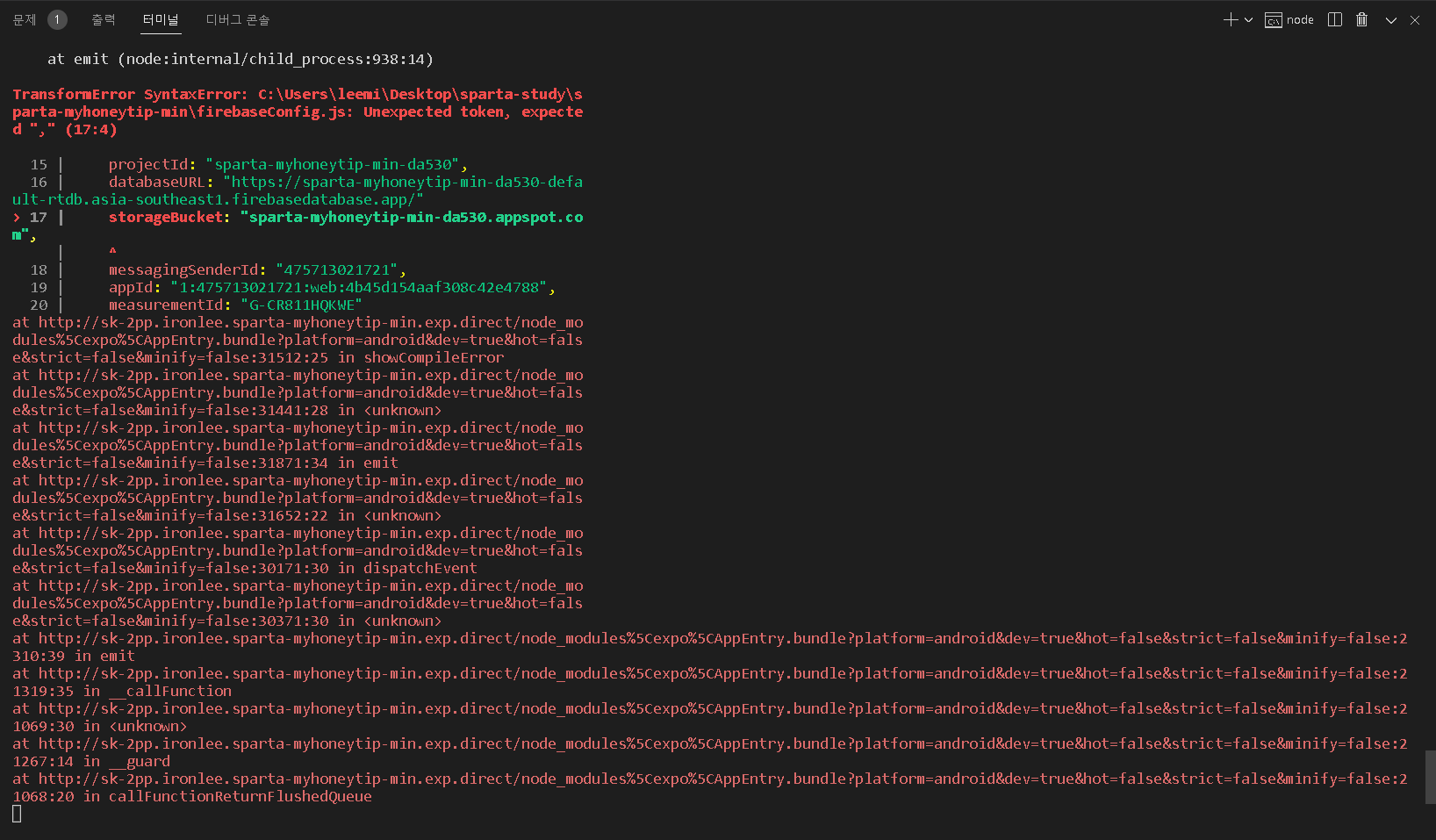
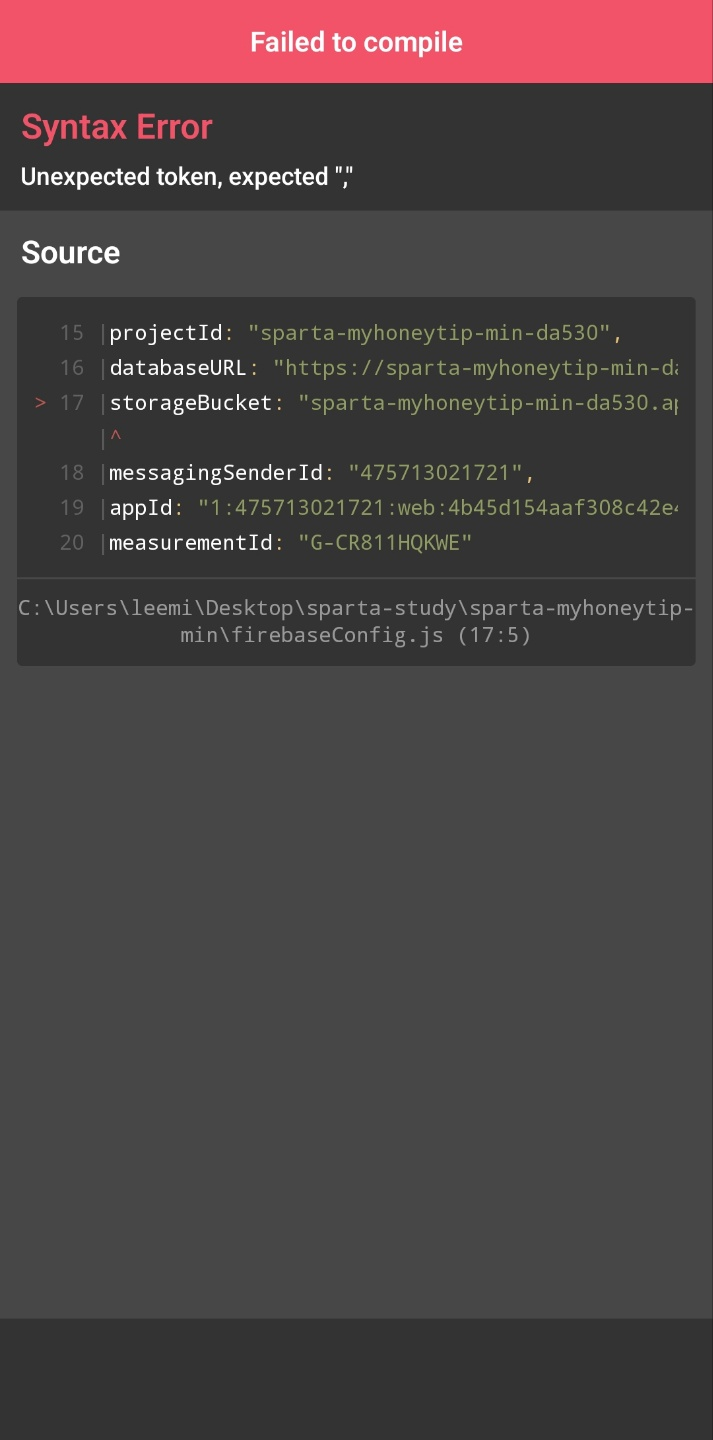
MainPage.js는 4주차 6차시의 코드스니펫이고 firebaseConfig.js는 강의에서 튜터님이 하라는대로 했는데 예상치 못한 에러가 나왔는데 왜 에러가 났는지 모르겠어서 질문드립니다.


댓글 알림
